Guide · Getting started
Get to know the map screen
A tour of everything on Yut's main screen, and where the settings live.
Find it in the app
- Map screen
Everything in Yut starts from one screen: a live map with you in the middle. Here is what each part does.
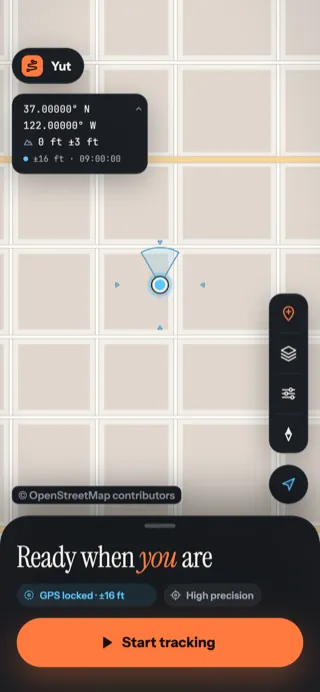
The map screen, ready to record.
- Status capsule — reads Yut now, RECORDING with a timer while you record, or PAUSED.
- Coordinate card — latitude, longitude, elevation and how accurate the fix is. Tap its arrow to fold it into a small pill.
- You. The blue dot is your position; the cone shows which way the phone faces.
- Drop pin — marks the spot where you are. See Pins.
- Map style — choose what the map looks like.
- Tracking options — every setting: theme, layers, units, history and more.
- North up / Heading up — turns the map to face the way you go.
- Recenter — brings the map back to you after you've moved it.
- Credits for the map and any layers that are on.
- GPS chip — GPS locked plus how accurate it is. The chip beside it is the precision mode.
- Start tracking — begins recording a route.
The settings: Tracking options
Tap Tracking options on the right-hand column to open the Tracking sheet. It's one long list, grouped by topic; swipe up for more, and tap the ✕ to close it.
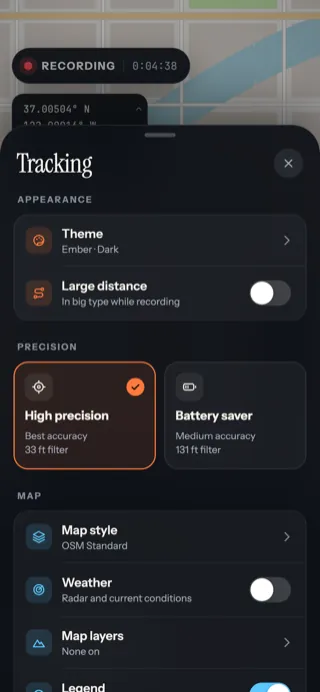
Appearance, Precision, Map
Theme, big distance, High precision or Battery saver, map style, weather and layers.
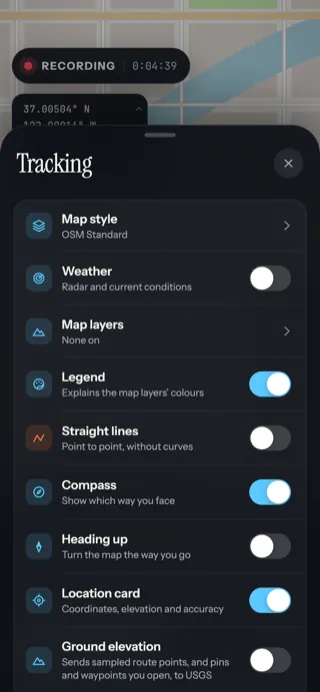
More map options
Legend, straight lines, compass, heading up, the location card and ground elevation.
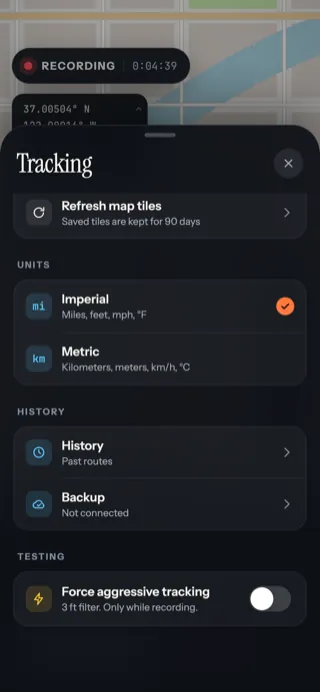
Units, History, Backup
Refresh map tiles, miles or kilometers, your past routes and Backup.
Updated October 12, 2026 · Still stuck? Ask us