Guide · The map
Move around the map
Zoom, look around, come back to yourself, and turn the map to face the way you're going.
- Map screen
The map follows you as you move. You can look around any time without stopping a recording.
| Gesture | What happens |
|---|---|
| Pinch or double-tap | Zooms in or out, and keeps following you |
| Drag | Lets you look around; the map stops following you |
| Recenter | Back to you, following again |
| Reset zoom | Back to you at the standard zoom |
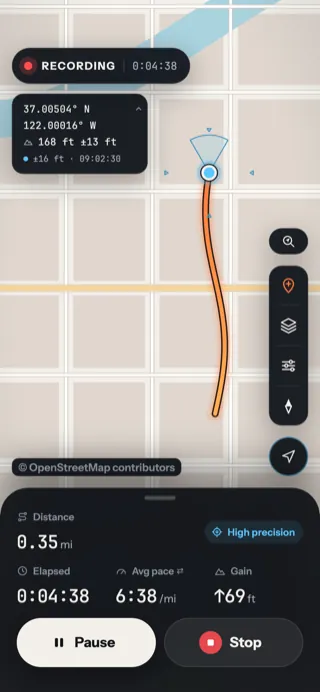
- Reset zoom shows up once you've zoomed or moved away.
- Recenter brings the map back to you.
Which way am I facing?
The pale cone on your location dot points where the phone is facing, like a compass. When you're moving fast, in a vehicle or on a bike, it points the way you're travelling instead.
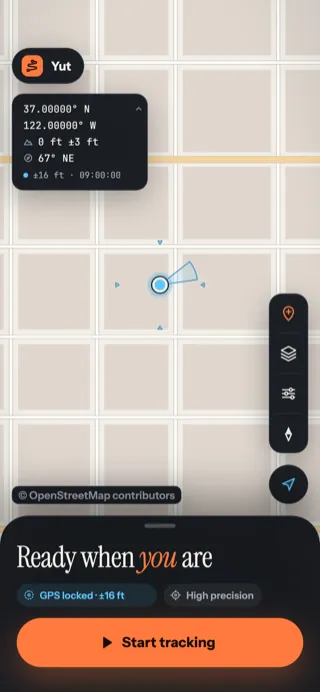
- The cone turns as you turn the phone. A narrow cone means a confident compass.
- The heading in degrees and letters, such as 67° NE.
- North up / Heading up turns the map.
North up or heading up
The map starts north up, like a paper map. Tap North up / Heading up to switch to heading up: the map turns so the way you're going is always at the top, and your dot sits lower down so you see more of what's ahead.
North up
North is always at the top. Best for reading the map.
Heading up
The road ahead is always at the top. Best for following a trail.
Updated October 12, 2026 · Still stuck? Ask us